Set Up Your Organization
Your organization profile represents your business or lobbying firm across Civalta. Keep it current so teammates, clients, and potential partners see accurate information about your organization.
These steps apply to both account types.
Business accounts and lobbying firm accounts use the same Organization Profile page. Only organization owners and administrators can make changes; other members can view the information.
Before you begin
- Switch to the Civalta workspace for the organization you want to update.
- Make sure you are an organization Owner or Admin.
- Have your organization logo ready. Civalta accepts PNG, JPG, and WebP images up to 5 MB.
Open the Organization Profile page
- Select Settings in the Civalta navigation.
- Select Organization.
- Open the General details tab.
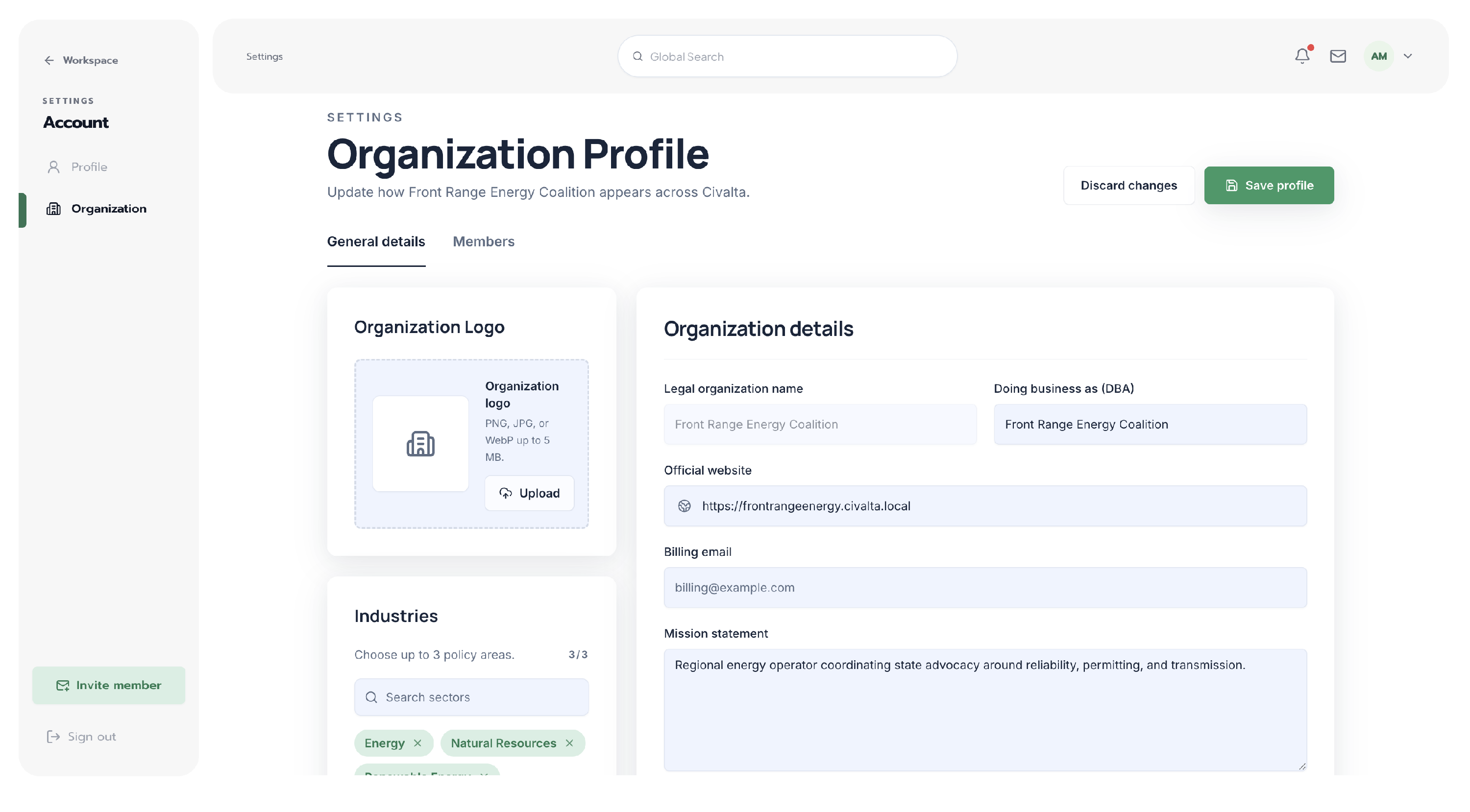
Use the General details tab to manage how your organization appears across Civalta.
Add your organization logo
- In Organization Logo, select Upload.
- Choose a PNG, JPG, or WebP image no larger than 5 MB.
- Review the preview. You can replace or remove the image before saving.
Complete your organization details
Choose your industries
Select up to three policy areas that best describe your organization. Choose the most specific options available so Civalta can provide useful context and help the right people find your organization.
Review the organization type and status
The page also shows your organization’s account type and status. These are informational and cannot be edited from the Organization Profile page.
Save your organization profile
- Review the logo, industries, and organization details.
- Select Save profile.
- Wait for Civalta to confirm that the organization profile was saved.
Select Discard changes before saving if you want to restore the information from the last saved version.
Troubleshooting
What’s next?
After the organization profile is complete, make sure each team member has completed their personal profile. Organization owners and administrators can manage members separately from the Members tab.